





Quotex Login: Sign In to the Traderoom
Last updated: 2026-08-22 · Unofficial
Quick answer
Sign in only at quotex.io (or the official app) with your email and password, plus a 2FA code if you set one. This site is a guide — the buttons below take you to the genuine portal.
Getting into your Quotex account is quick, but doing it safely is what this page is really about. Whether you call it the Quotex sign in, the Quotex login page, or the Quotex web login, the steps here cover it on desktop and mobile. Below you'll find password recovery, how two-factor fits in, and a short troubleshooting list for the handful of things that usually block people. A reminder: we're an independent, unofficial resource that links to the real Quotex site, and Quotex itself is a high-risk, offshore platform — treat the risk section as required reading.
The sign-in flow, start to finish
Four steps, identical in spirit whether you're on a laptop or a phone:
-
Head to the official portal
Open quotex.io and choose Sign in, or launch the Quotex app. Verify the domain and the padlock before anything else.
-
Type your credentials
Use the exact email and password from sign-up. Watch Caps Lock — passwords are case-sensitive.
-
Clear the 2FA prompt
If two-factor is on, punch in the current one-time code from your email or authenticator app.
-
You're in the traderoom
Your charts, watchlist and balance load. From here you pick demo or real.
Desktop vs. mobile — what differs
On a computer, the web traderoom needs no download: open the site, hit Sign in, enter your details, and your browser can remember the session. On a phone, the Quotex app typically keeps you signed in after the first time. Wherever you are, check the address bar and only install the app from an official source — counterfeit apps exist purely to harvest logins. Avoid signing in on shared or public machines.
Signing in with Google
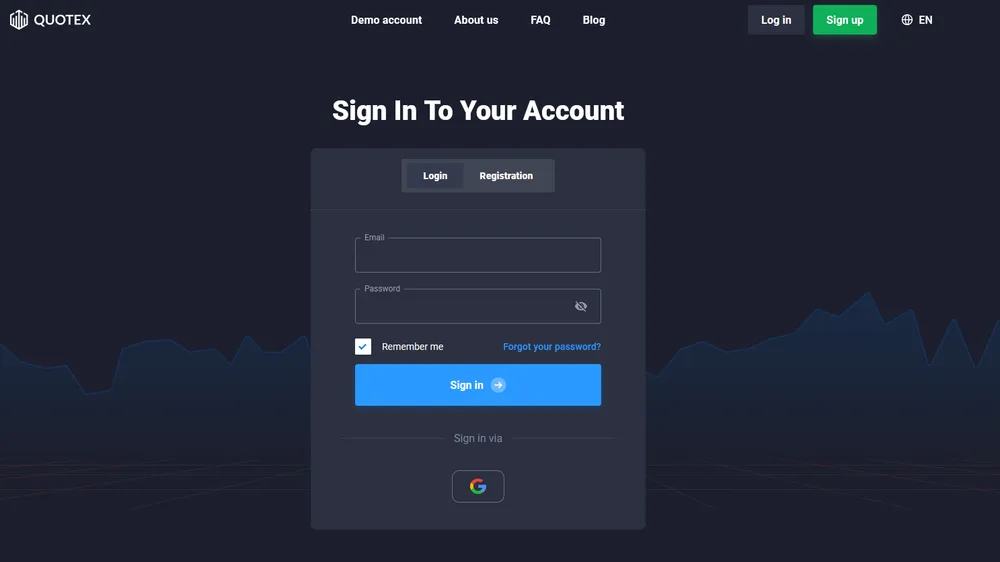
Quotex also offers a "Sign in via Google" option below the login form. If you registered with Google, use that button instead of an email and password. Keep the underlying Google account secured with its own strong password and 2FA.
Recovering a password
A forgotten password is the number-one login problem. Use the recovery option on the sign-in screen, enter the email tied to your account, and open the link Quotex sends you (check spam). Pick a strong password unique to this account. If no email arrives, the culprit is almost always the wrong email address.
Two-factor authentication, briefly
If you've enabled 2FA, a rotating one-time code from your email or authenticator app is required after your password. Codes die quickly, so grab a fresh one if it's refused, and keep your device clock automatic.
Can't get in? Run through these
Nearly every failed sign-in traces back to one of the following:
Can't get in? Run through these
- Credentials rejected
- Retype slowly, rule out Caps Lock, and make sure it's the address you signed up with. Still stuck? Trigger a password reset.
- No reset email
- Look in spam/promotions, give it a few minutes, and double-check the address — a typo'd or aliased email won't receive it.
- 2FA won't accept the code
- The code rotates every few seconds, so use a fresh one, and set your phone's clock to automatic so it stays in sync.
- "Under review" / locked out
- Usually a verification (KYC) or terms matter rather than a lost account — reach official support and see our account guide.
- Sign-in screen stuck
- Clear the cache, swap browser or use the app, and test your connection. Access is also blocked in some regions (below).
- Kicked out mid-session
- Sessions time out for safety. Log back in and switch on 2FA so the account stays locked down.
Demo or real — pick after you're in
Once you reach the traderoom, the balance selector at the top lets you flip between Demo (free virtual funds) and Real (your own money). If you're new, stay on the demo until the platform feels second nature. The minimum real deposit sits at from us$ 10.
A short security checklist
- Sign in only at quotex.io or the official app — verify it every single time.
- Your password and 2FA code are yours alone; real support never asks for them.
- Enable two-factor and lean on a password manager.
- Anyone charging a fee to 'boost', 'recover' or 'trade' your account is a scammer, not the broker.
- Treat ads and DMs linking to 'login' pages with suspicion — they're often credential traps.
Is Quotex even available where you are?
Sometimes the problem isn't your password at all — it's geography. Not available in some countries (e.g. the USA and parts of the EU) — the restricted list can change; verify for your country. If you're in a blocked region, that's the likely reason the traderoom won't let you in.
Keep reading
Frequently asked questions
Where do I sign in to Quotex?
Through the official Quotex website (quotex.io) or the official app — nowhere else. This page is an independent guide that points you to the real portal; it never hosts a login form or asks for your password.
What details do I need to log in?
The email and password you chose at registration, plus a one-time 2FA code if you enabled two-factor. Enter them on the official Sign in screen and you'll reach the traderoom.
I can't remember my password — now what?
Pick the password-recovery link on the sign-in screen, submit your registered email, and follow the link that lands in your inbox (spam included). Set a fresh, unique password.
Why does my login keep failing?
Typically one of: a mistyped email/password, an expired 2FA code, an account awaiting verification, or access from a country where Quotex isn't offered. Work through those, then contact support.
How do I keep my account secure at login?
Only sign in on quotex.io or the official app, never reveal your password or 2FA code, turn on two-factor, and ignore anyone offering to 'recover' or 'manage' your account. Note Quotex is offshore, overseen only by the IFMRRC (self-regulatory, not tier-1), and trading is high risk — most retail accounts lose money.
How do I move between demo and real after signing in?
Use the balance/account selector at the top of the traderoom. Demo runs on free virtual funds; real uses your deposited money, with a minimum deposit from about US$10.